
What is Stolen Device Protection?
Note: Apple released iOS 26.4 today, 3/24/26. You can install this update at Settings:General:Software Update.)
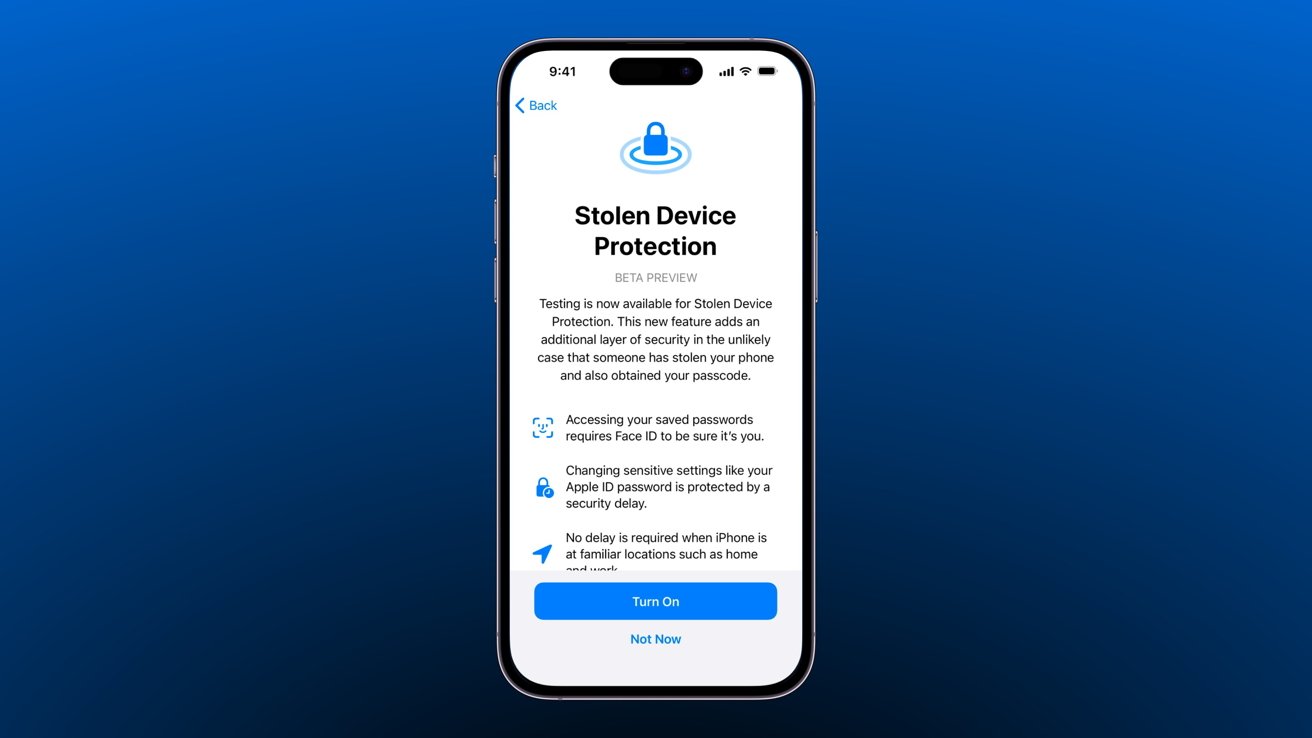
In 2023, Apple introduced a new feature called Stolen Device Protection. This feature is designed to prevent iPhones from being accessed if a thief manages to learn a user’s passcode and steal their iPhone.
An experienced thief could easily access a user’s list of passwords, access bank accounts, and disable safety features such as Find My and Trusted Devices.
Previously, the feature was disabled by default, and users would need to enable it via settings. But that’s about to change. Apple will be opting (some) users into Stolen Device Protection in iOS 26.4 by default. If you haven’t used it yet, here’s what you need to know about it.
How Does Stolen Device Protection work?
When Stolen Device Protection is enabled, the following requires biometric authentication with no passcode fallback:
- Using passwords or passkeys saved in Apple Passwords
- Applying for a new Apple Card
- Viewing the Apple Card virtual card
- Turning off Lost Mode
- Erasing all content and settings
- Take certain Apple Cash and Savings actions in Wallet
- Using payment methods saved in Safari
- Using your iPhone to set up a new device
That means a thief with your iPhone and passcode could not access these settings.
Apple adds another layer of protection for especially sensitive settings and controls — a one-hour delay. If the user is outside of a trusted location and attempts to alter the following settings, a biometric scan followed by an hour delay and another biometric scan occurs.
- Changing your Apple ID password
- Updating Apple ID account security settings, like removing a trusted device, trusted phone number, Recovery Key, or Recovery Contact
- Changing your iPhone passcode
- Adding or removing Face ID or Touch ID
- Turning off Find My
- Turning off Stolen Device Protection
Trusted locations are learned by the iPhone and are not user-addressable. Significant locations such as home and work are theoretically used as exemptions for Stolen Device Protection. In our experience, this feature works properly less than half the time.
How to disable Stolen Device Protection
Disabling the feature can be done through Settings, but if you attempt to do so outside of a trusted location, it will trigger an hour-long delay between biometric scans.
- Open the Settings app and tap on “Face ID (or Touch ID) & Passcode“
- The toggle for Stolen Device Protection is about midway down the page
- Toggle the feature off
Yeah, But Why Should I Care?
In my experience, the home and work locations often do not work properly which leaves you, the user, stuck with an hour delay when trying to change your own Apple ID password, for instance. If you are sitting with a Mac consultant like me, that is an unacceptable delay. Personally, I leave this feature turned off on my own phone for just this reason.
How About Some Help With That?
Yes, that’s what we’re here for. Contact Us and we will get you set up!